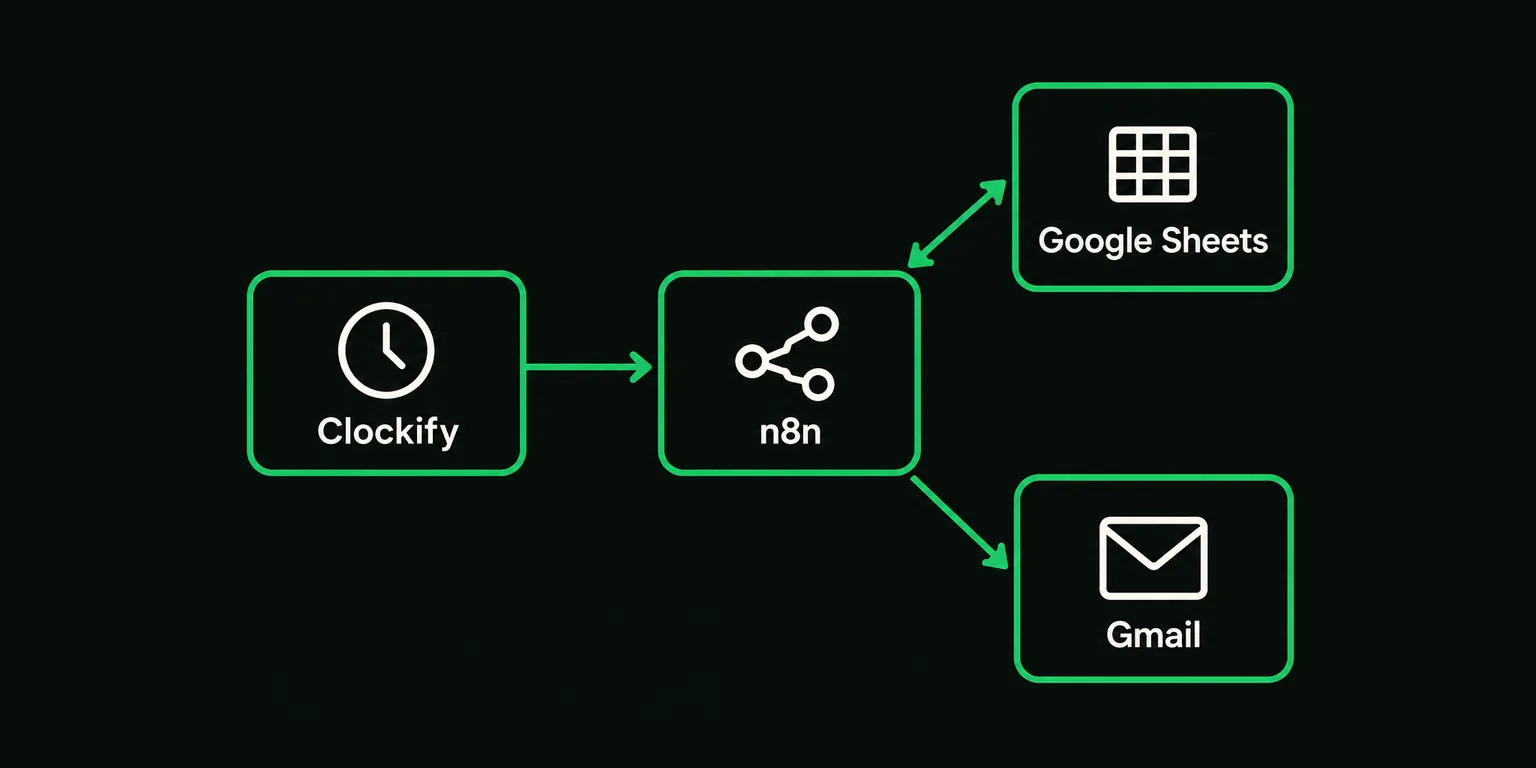
A workflow is a sequence of tasks. Its individual steps, called nodes, are already connected in this package. You import the file, choose your service connections and fill in the settings.
Before you begin
You need an existing n8n Cloud account or a working self-hosted n8n installation, a Clockify workspace, and a Google account for Sheets and Gmail. The Clockify connection requires an API key from a workspace owner or administrator. An API key lets n8n access the service. Setting up a self-hosted server is outside this guide.
The download is free. Account subscriptions, hosting and service usage may have separate costs. Check the terms for your own accounts.
The package follows calendar months, with up to ten client rows. Unused hours do not roll over. Node names, spreadsheet headers and alert emails are in English in both language packages.
Check month-end totals separately. Each calculation stops at yesterday, and the workflow skips the first day of a new month. As a result, this version does not alert on hours recorded on the last day of the month. Use a Clockify report to check final monthly totals and invoicing.
Clockify supplies the hours, Sheets holds the allowances, and Gmail delivers the notification. Sheets also records which thresholds have already been reported.
1. Download and extract the package
Open the English download page and follow its download instructions. Extract the ZIP to a folder on your computer.
Read README.txt, REQUIREMENTS.txt, TESTING.txt and VERSION.txt. They explain setup, required accounts, checks and the package version. The file test-data/retainers-template.csv is a fallback spreadsheet template.
The file to import into n8n is clockify-retainer-hours-alert.json. This JSON file contains the workflow structure. If you can only see the ZIP, extract it first.
2. Import into a new workflow
Sign in to your own n8n. From Overview, select Create workflow, or use New workflow in the plus menu.
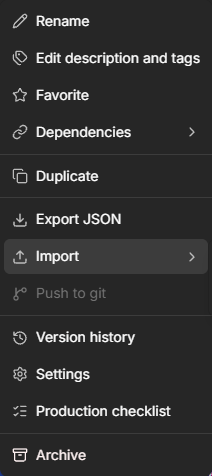
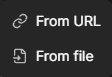
Next to the workflow name, open … / More actions → Import → From file and choose the extracted JSON file. The menu position can vary slightly between n8n versions.
After import, you should see the connected nodes and five instruction notes on the canvas. Read those notes before changing the settings. If import fails, check that you selected the JSON file and try again in a new empty workflow.
3. Run the built-in example
Open Configuration, the node that holds the shared settings. Leave run_mode set to fixture. This mode runs the supplied example without reading Clockify or Sheets or sending email.
Select Execute workflow. If prompted to choose a trigger, use Run Now. After the run, open Compute Alerts and inspect its Output.
| Example | Expected result |
|---|---|
| Acme | 32.4 of 40 hours, 81%, new threshold 80 |
| Beta | 21 of 20 hours, 105%, new thresholds 50, 80 and 100 |
| Gamma | An intentional Project ID not found row error |
| Delta | Disabled |
The output should show status: ok and new_alert_count: 2. The example uses a fixed date of 7 October 2026 and includes hours through 6 October. It does not use today's date or your account data.
If the result differs, check the mode and the supplied TESTING.txt before proceeding. A connection name already appearing in a node does not prove that the connection works: fixture mode does not use it.
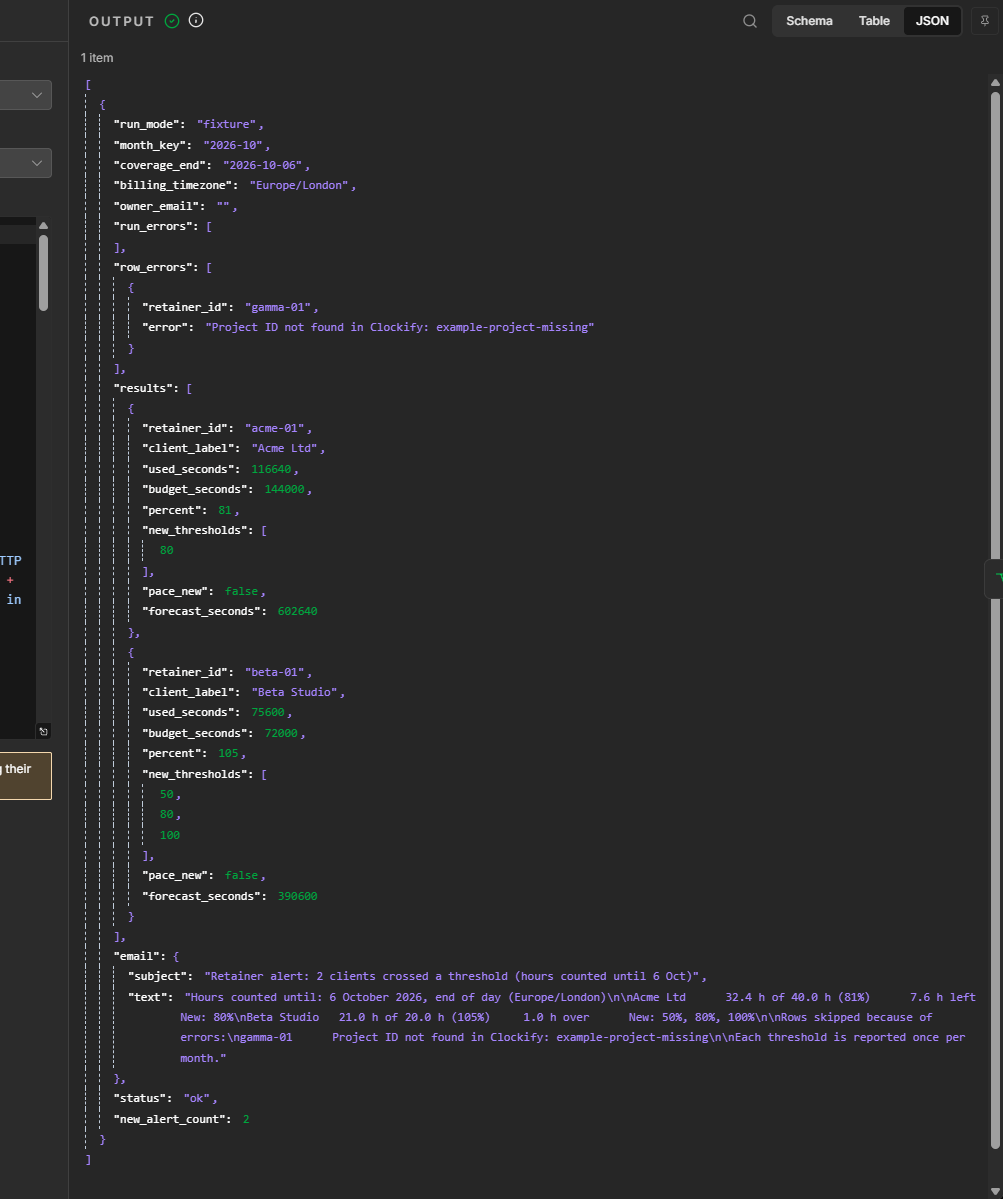
The intentional Gamma row error appears in the same result.
4. Make your own spreadsheet copy
Use the Google Sheets template link in the package instructions to make a copy in your account. Keep the Retainers tab name and every column header unchanged. Save the URL of your own copy.
Leave sample rows disabled until you replace their placeholder project IDs. The sample rows in the online template are already switched off. The CSV fallback has some sample rows switched on (TRUE), so check every row if you import the sheet from CSV.
Use a separate spreadsheet for the real sending test. Alert state written during the test will then stay separate from your everyday tracking.

The column names match both language packages. An unchecked enabled box leaves that row out of tracking. The project text shown is placeholder text.
5. Connect your own accounts
A credential is a service connection saved in n8n. Choose the appropriate connection in every node listed below. The lines between nodes are already in place.
| Connection | Nodes that need it |
|---|---|
| Clockify | Get Clockify Projects; Get Clockify Summary; List Clockify Workspaces; List Clockify Projects |
| Google Sheets | Read Retainers; Save Alert State |
| Gmail | Send Test Email; Send Alert Email; Send Technical Notice |
Enter the Clockify API key in the connection's secret field in n8n. Keep it out of spreadsheets and screenshots.
Open Get Clockify Projects → Credential → Create new credential and use a Clockify API connection. In Clockify, open the profile menu and Preferences → Advanced to reach API-key management. Follow Clockify's current API-key instructions. Copy a newly generated key immediately and enter it only in n8n's API Key field. Save the connection and select it in all four Clockify nodes listed above.
Google connections are created differently on n8n Cloud and on self-hosted n8n, so follow the route that matches your setup. Either way, the service tests that follow show whether a connection actually works. A selected connection name alone does not.
Create the Google connections on n8n Cloud
Open Read Retainers and its connection selector. Create a Google Sheets OAuth2 connection using Managed OAuth2, then choose Sign in with Google. Use the account that can access your spreadsheet copy, grant the requested access, and save the connection. Select the same connection in Save Alert State.
In Send Test Email, create a Gmail OAuth2 connection for the sending account. Select it in Send Alert Email and Send Technical Notice too. This account sends the email; Configuration's owner_email receives it.
Managed sign-in does not require your own Google Cloud project or Client Secret. If those fields are required, check the authentication choice and whether your installation is Cloud or self-hosted. The detailed steps are in n8n's official instructions.
Use your own Google OAuth setup on self-hosted n8n
Self-hosted n8n needs your own Google OAuth setup, which is the permission that lets n8n use your Google account. Sheets needs the Sheets and Drive APIs; Gmail needs its own API. Prepare the Google Cloud project, APIs and consent configuration using the official setup instructions. Create a Web application OAuth client. Its Authorized redirect URIs must match the OAuth Redirect URL shown by your own n8n connection exactly. Enter Client ID and Client Secret only in the n8n connection form, then complete Google sign-in.
Keep Sheets and Gmail as separate connections and select them in every listed node. The following tests check the actual permissions and results. For redirect_uri_mismatch, compare the redirect addresses character by character. If a Testing app denies access, check that your Google account is an allowed test user. An app in External/Testing mode may also ask you to sign in again after seven days, so sort that out before relying on unattended runs.
To find the form, open Read Retainers, select Credential → Create new credential, and check that the connection type is Google Sheets OAuth2 API. The empty form asks for Client ID and Client Secret. Select the saved connection in the second Sheets node too. Opening the form alone does not connect your Google account.

6. Find the workspace and project IDs
Set run_mode in Configuration to list_ids, move out of the edited field, and run manually. After the run, open Your Clockify IDs. This reads Clockify without sending emails or writing alert state.
workspace_id identifies the Clockify workspace. A row's project_ids identifies one or more projects belonging to that client. Use the IDs rather than project names. For multiple projects, separate their IDs with commas in the same spreadsheet cell.
Find the correct workspace_name and project_name in the output. Copy that row's workspace_id to Configuration and its project_id to the project_ids cell in your sheet. You can run this lookup before filling in your workspace_id: it lists the workspaces and projects visible to the connection. If a project is missing, check the selected connection and access permissions.
Open Your Clockify IDs after a successful list_ids run and select Output → Table. Copy the identifiers from the same project's row.
7. Fill in Configuration and both timezones
| Setting | Value to provide |
|---|---|
| workspace_id | Your chosen Clockify workspace ID |
| owner_email | Your own address for tests and alerts |
| sheet_url | Your spreadsheet URL; use the separate test sheet during checks |
| billing_timezone | The timezone for counting hours, such as Europe/London |
| run_mode | The current test mode; next use test_email or dry_run |
Also open the workflow's Settings → Timezone and choose the same timezone. The calculation timezone sets the day boundaries; the workflow timezone controls the schedule. Check both after import.
Before continuing, confirm that the workspace, email address and spreadsheet are yours and that both timezones agree. Resolve an uncertain value before sending a test.
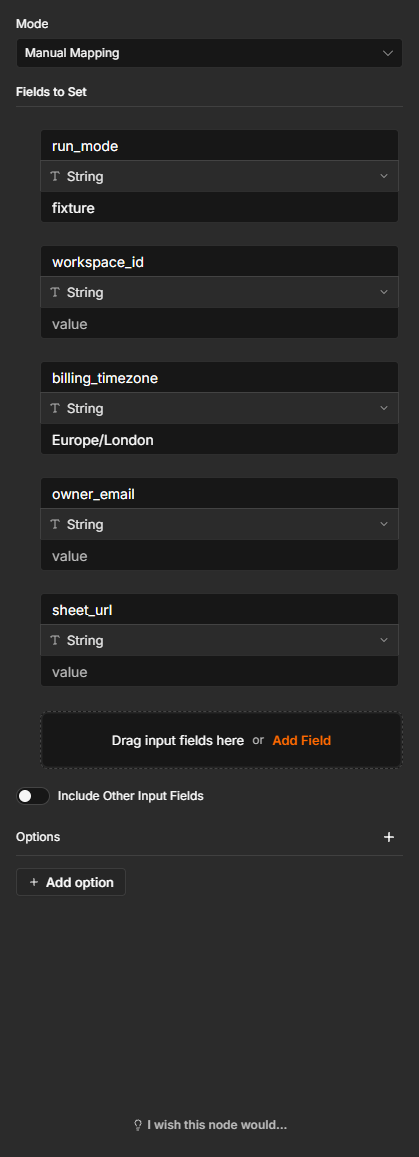
The image shows the initial empty fields. Choose your own timezone and check the workflow Settings separately; the screenshot's Europe/London value is an example.
8. Add one client row
Start with one row in the test spreadsheet. Choose a project you are permitted to access and whose hours you can check in a Clockify report.
| Column | What to enter |
|---|---|
| retainer_id | A unique, stable row identifier, such as test-01 |
| enabled | TRUE to include the row |
| client_label | The name shown in the email, such as Test Client |
| project_ids | The real project ID, or comma-separated project IDs |
| monthly_hours | A positive monthly hour allowance |
| pace_enabled | FALSE initially, leaving the optional pace alert off |
Leave the new row's alert and state columns empty. The workflow fills them later. A project must not appear in two enabled rows.
Start with a whole number such as 40. For fractional hours, make sure the cell contains a number. In a practical Finnish-locale test, 12,5 saved as user-entered input came back to n8n as the number 12.5, and the allowance was processed correctly. Comma-separated text, such as a value forced to text, is rejected. Keep units such as “hours” out of the cell and check the value in dry_run.
9. Send yourself a test email
Check owner_email, set the mode to test_email, and run manually. This sends a real email.
Check your inbox and confirm both sender and recipient. If it does not arrive, check spam and n8n's Executions, the run history. Inspect the Gmail node's result before retrying.
10. Compare your hours without sending alerts
Switch to dry_run and run manually. This reads your test sheet and Clockify without sending alerts or saving alert state.
Compare Compute Alerts with a Clockify report for the same projects, from the start of the month through the last included day shown in the output. Match the timezone and time filters too. Today's hours are outside a calculation that ends yesterday.
In Clockify's Summary report, select the start and end dates in the calendar, choose the matching Project filter, and select APPLY FILTER. Check Preferences → Time zone in the profile menu to match the calculation timezone. Leave rounding off for an exact comparison.
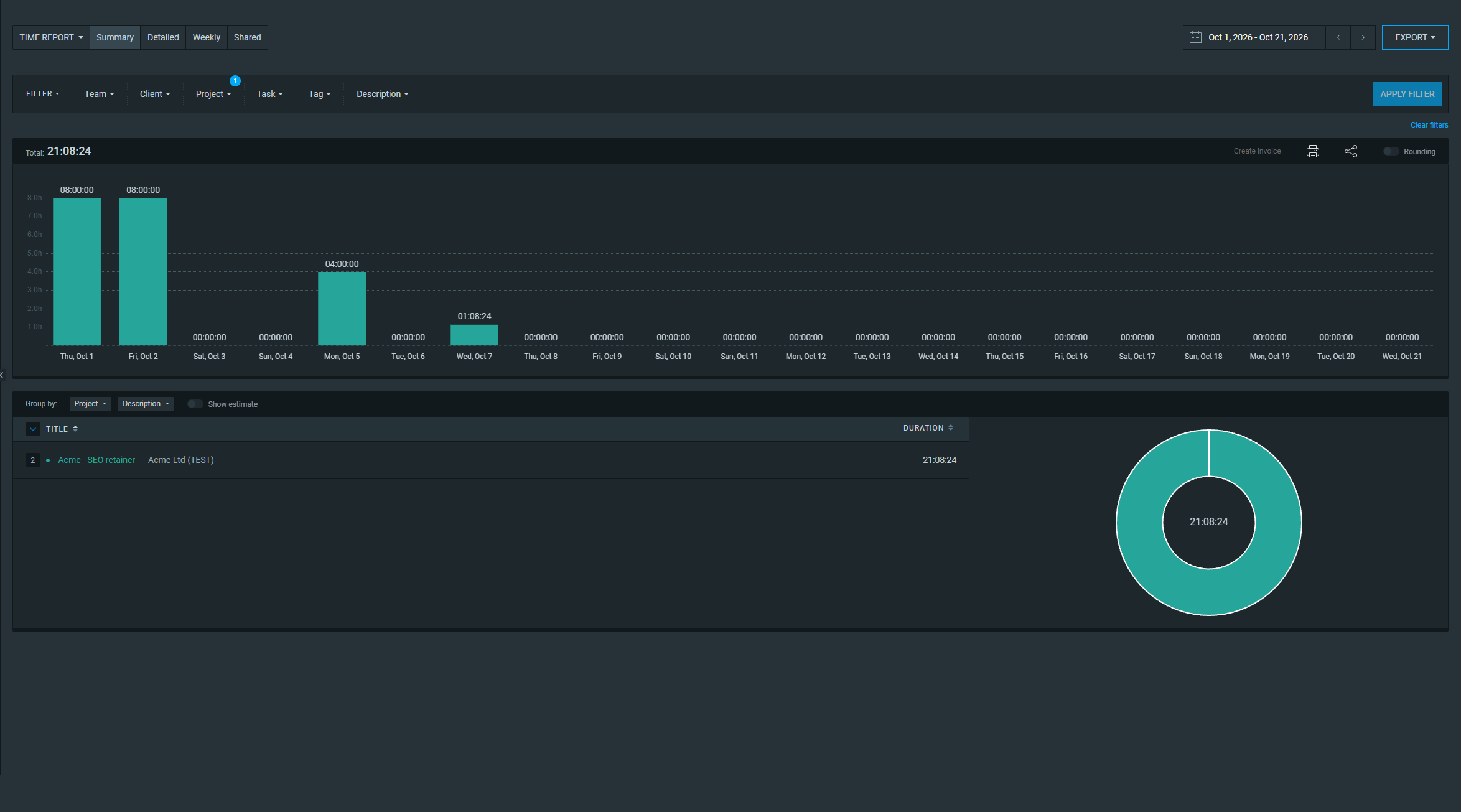
For the guide's test project, 21:08:24 matched the workflow's 76104 seconds exactly. Rounded decimal hours are 21.14 h, not 21 hours and 14 minutes. This is a verified comparison for one test project, not an expected total for your own account.
If the totals differ, resolve the date range, projects and filters before using live mode. An unknown project produces a row error; correct its ID or access permissions before proceeding.
11. Run a controlled live test
live sends real emails and writes spreadsheet state. Confirm the separate test sheet and your own recipient address again. Avoid another workflow running against the same sheet at the same time.
Give the test row a positive allowance low enough for existing recorded hours to cross a threshold. Those hours must fall within the calculation period. Check the expected alert in dry_run before switching to live.
Run once manually. Check the email and the relevant month markers in the test row, such as alerted_50_month, alerted_80_month and alerted_100_month. Run again with the same data. The same thresholds should not produce another alert.
If email succeeded but saving state failed, investigate before retrying: another run may send the email again. After the check, return the test workflow to fixture and leave it unpublished. Keep test results separate from everyday tracking.
12. Enable daily runs after the checks pass
Publishing enables the schedule. Complete the spreadsheet, hours comparison, email and state-saving checks before this step.
For everyday use, prepare the correct sheet, normal allowances and live mode. Check Every Day at 08:00 and the workflow timezone. Scheduled production runs use the published version. Running a manual test does not enable the schedule. See n8n's publishing guide.
Select Publish in the header. Review the version name and optional description, then confirm with Publish in the dialog. Wait for success: the header then shows Published, and n8n enables the triggers.
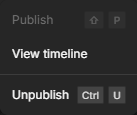
To stop production runs, open the arrow menu beside Publish/Published, choose Unpublish, and confirm Unpublish in the dialog. Changing only the draft back to fixture does not stop an already published live version.
After the first scheduled run, inspect Executions. No email can also mean that no new threshold was reached. Use the run result to establish whether the workflow succeeded.
When a check fails
| Symptom | First thing to inspect |
|---|---|
| Clockify returns 401/403 | Selected connection, API key validity and workspace permissions |
| Clockify returns 429 | API request limit; avoid repeatedly starting new runs |
| Spreadsheet not found | Your sheet_url, Retainers tab name and read access |
| State not saved | Write access and the Save Alert State node's error |
| No clients in the result | enabled values, spreadsheet selection, projects and calculation dates |
| No email | Run mode, new thresholds, owner_email and Gmail node result |
Check execution history even if no technical notice arrived. The same Gmail connection sends alerts and technical notices, so a Gmail failure may prevent both.
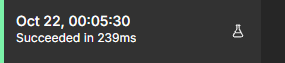
Success alone does not prove that email was sent or scheduling is enabled. Open the relevant execution's nodes and check its mode and results.
Pick up where you left off
Keep the supplied instructions with your download. If you need to start again, return to fixture and work through the checks one at a time. Get the English package here.